Windows Agent
Agent Setup Guide
How to download, connect, and activate the Tracknesty agent on employee PCs
Before you begin: The agent installer is available inside your admin dashboard under Settings → Agent Download. You need an active Tracknesty account and at least one employee account created before proceeding. See the Help Center if you haven't set these up yet.
01
How to Download the Agent
Log in to the admin dashboard
Open your Tracknesty admin dashboard in a browser and sign in with your administrator credentials.
Go to Settings → Agent Download
In the left sidebar, navigate to Settings, then click "Agent Download". You will see the latest version of the Windows agent installer listed here.
Download the installer file
Click the download button on the Agent Download page. The installer is a standard Windows .exe file (approximately 12 MB). Save it to a location you can access easily — a shared network drive works well if you are deploying to multiple PCs.
Transfer to the employee's PC
Copy the installer file to the employee's Windows computer via USB drive, shared folder, email attachment, or any remote access tool (e.g., AnyDesk, TeamViewer).
02
How to Connect the Agent
Run the installer as Administrator
On the employee's Windows PC, right-click the downloaded .exe file and select "Run as administrator". This ensures the agent can install its Windows service correctly.
Accept the license agreement
Read through the license agreement and click "I Agree" to proceed with the installation.
Enter the workspace URL
When prompted, enter your Tracknesty backend URL — this is the address of the server where your Tracknesty instance is hosted (e.g., https://your-company-server.com). This tells the agent where to send monitoring data.
Enter the employee's credentials
Enter the email address and password of the employee account you created in the admin dashboard. These are the same credentials the employee uses to log into the member portal.
Complete the installation
Click "Install". The agent installs as a Windows service and will appear as a Tracknesty icon in the system tray in the bottom-right corner of the screen. The agent starts automatically on every Windows login.
03
How to Verify Activation
Check the system tray icon
After installation, the Tracknesty icon should appear in the Windows system tray (bottom-right taskbar area). A green indicator means the agent is connected and active. A grey or red icon means it is disconnected — see the troubleshooting section below.
Verify in the admin dashboard
Log in to your admin dashboard and go to Members. Find the employee you just set up — their status should change to "Online" within 1–2 minutes of the agent starting. You will also see their first clock-in time recorded automatically.
Confirm screenshot capture
Wait for the first screenshot interval to pass (based on your configured interval — default is every 5 minutes). Go to Members → select the employee → Screenshots. The first screenshot should appear in their timeline, confirming the agent is fully active and sending data.
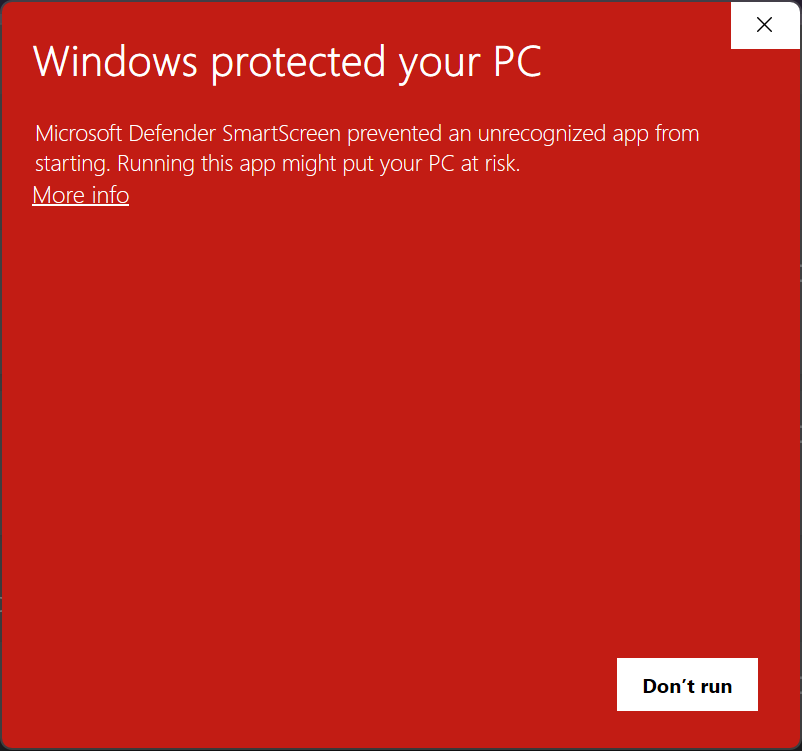
Windows SmartScreen Prompt (Bypass Guide)
Follow these 2 quick steps if Windows Defender shows a prompt during installation:
1Click "More info"
Click the underlined More info link on the initial SmartScreen window.
2Click "Run anyway"
The dialog expands to reveal app info. Click Run anyway to install.
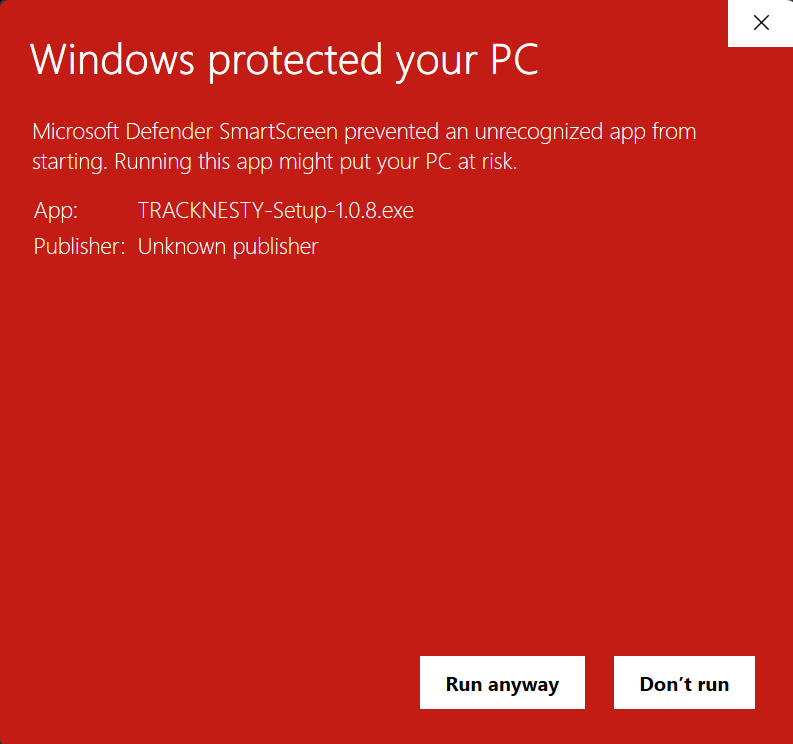
Note: Windows flags new application versions until they gain download reputation. TRACKNESTY is 100% verified and secure.
Troubleshooting
Status shows "Disconnected" in dashboard
Check that the PC has an active internet connection. Verify the workspace URL entered during installation is correct (no trailing slash). Restart the agent by right-clicking the system tray icon and selecting "Reconnect".
No icon in system tray
The agent service may have failed to start. Open Windows Services (services.msc), find "Tracknesty Agent Service", and click Start. If it fails, try reinstalling the agent as Administrator.
Wrong employee credentials entered during install
Uninstall the agent from Windows Settings → Apps → Tracknesty Agent, then reinstall it with the correct credentials.
Screenshots not appearing
Confirm the employee is actively using the PC (screenshots only capture when keyboard/mouse activity is detected). Check Settings → Monitoring in the dashboard to confirm screenshot capture is enabled for that member.