In remote-first organizations, digital marketing agencies, and software development teams, verifying billable hours without micromanagement is critical. Deploying a modern Time Tracker With Screenshots provides verifiable proof of work, eliminates client invoicing disputes, and protects employee data through automated privacy blurring and anti-bypass integrity checks.
1. What Is a Time Tracker With Screenshots?
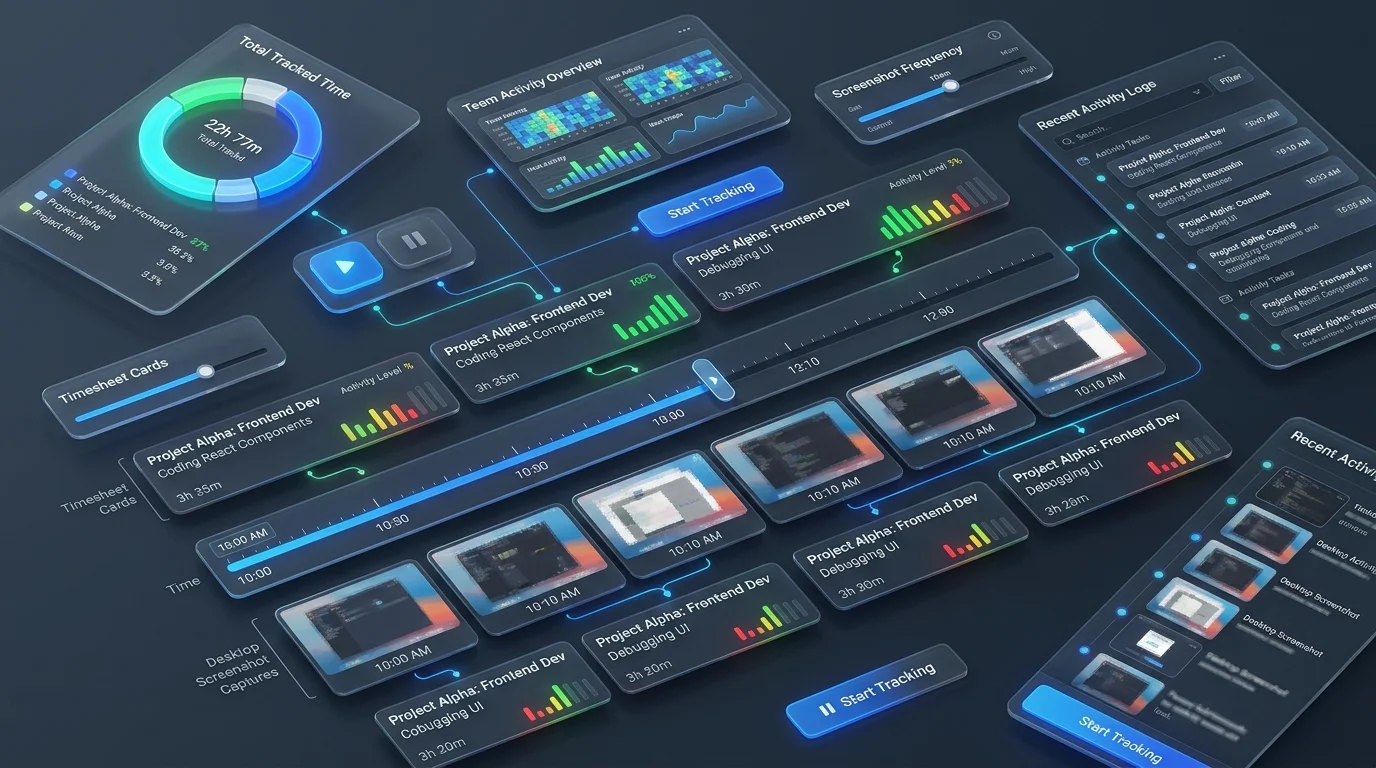
A time tracker with screenshots is an automated desktop application that logs active work duration while periodically capturing visual snapshots of the user's computer screens during active tasks.
Rather than relying on manual honor-system spreadsheets, a dedicated time tracker with screenshots pairs each captured screen with vital operational telemetry:
- Verified Timestamp & Timezone: Exact start, duration, and completion time of the work segment.
- Project & Ticket Association: The designated client contract, task name, or Jira ticket being billed.
- Non-Invasive Activity Index: Mouse movement and keyboard stroke frequencies calculated without keylogging private text.
- Active Software & URL Context: Categorization of active foreground tools (such as Figma, VS Code, or CRM systems) via app and URL tracking.
2. The 6-Step Screenshot Verification Pipeline
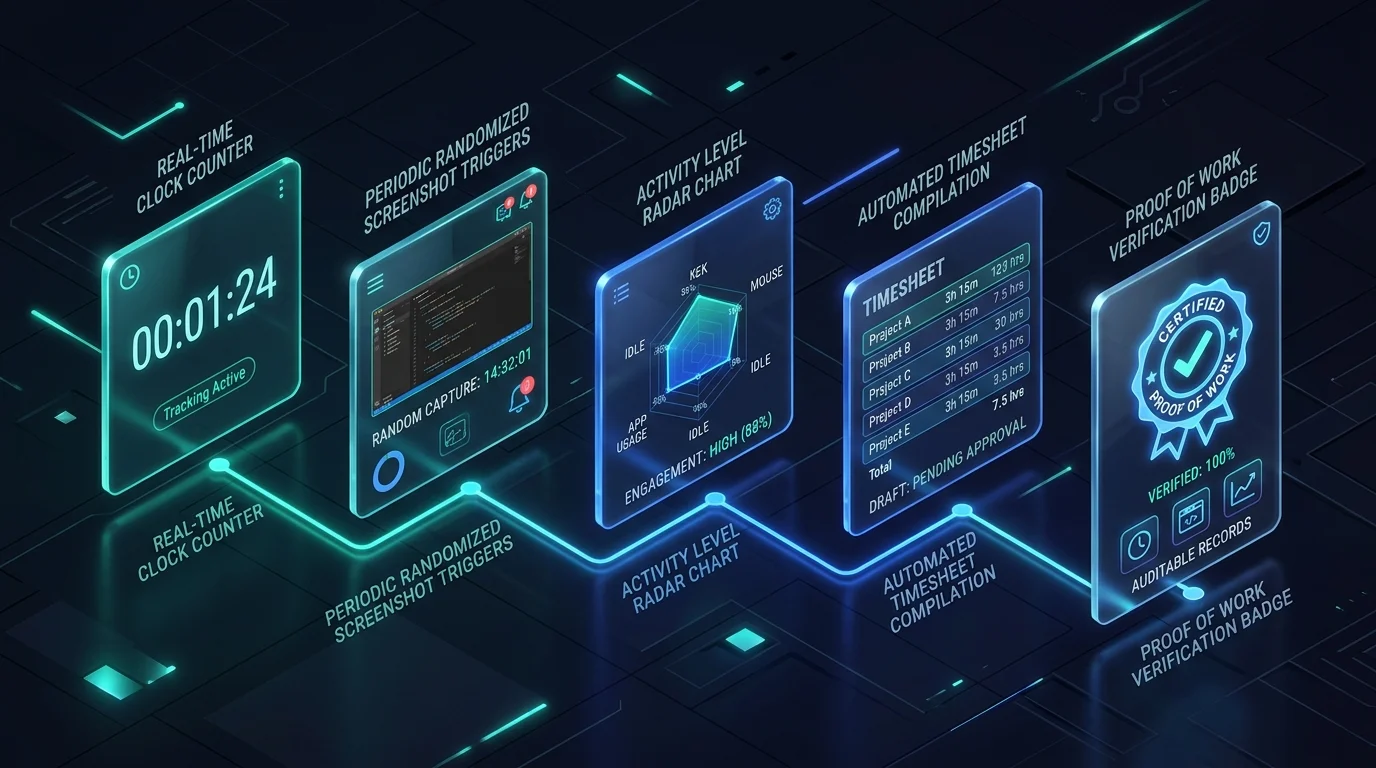
Leading platforms like Tracknesty execute an automated 6-step lifecycle for every recorded time block, ensuring zero computer lag and airtight security:
- User-Initiated Clock Start: The employee selects their assigned project and clicks Start. The agent never monitors off-the-clock personal time.
- Randomized Interval Scheduling: Within each 10-minute block, the agent triggers a capture at an unpredictable second (e.g. 10:04:18) to capture genuine, un-staged work progress.
- Local Privacy & Gaussian Blur Filtering: Before any image is transmitted, client-side algorithms apply high-radius blurring to obscure passwords and personal info if privacy mode is enabled.
- Activity Cadence Scoring: Input event counts are aggregated into an objective engagement percentage (0%–100%) for that interval without invasive keystroke recording.
- Heuristic Anti-Jiggler Inspection: The session is continuously evaluated against geometric mouse movers, USB hardware jigglers, and virtual machine scripts with anti-bypass protection.
- Encrypted WebP Cloud Sync: The lightweight, compressed WebP snapshot is encrypted with TLS 1.3 and synchronized to the manager timesheet portal.
3. Privacy Protection: Gaussian Blur & Confidential Data Masking
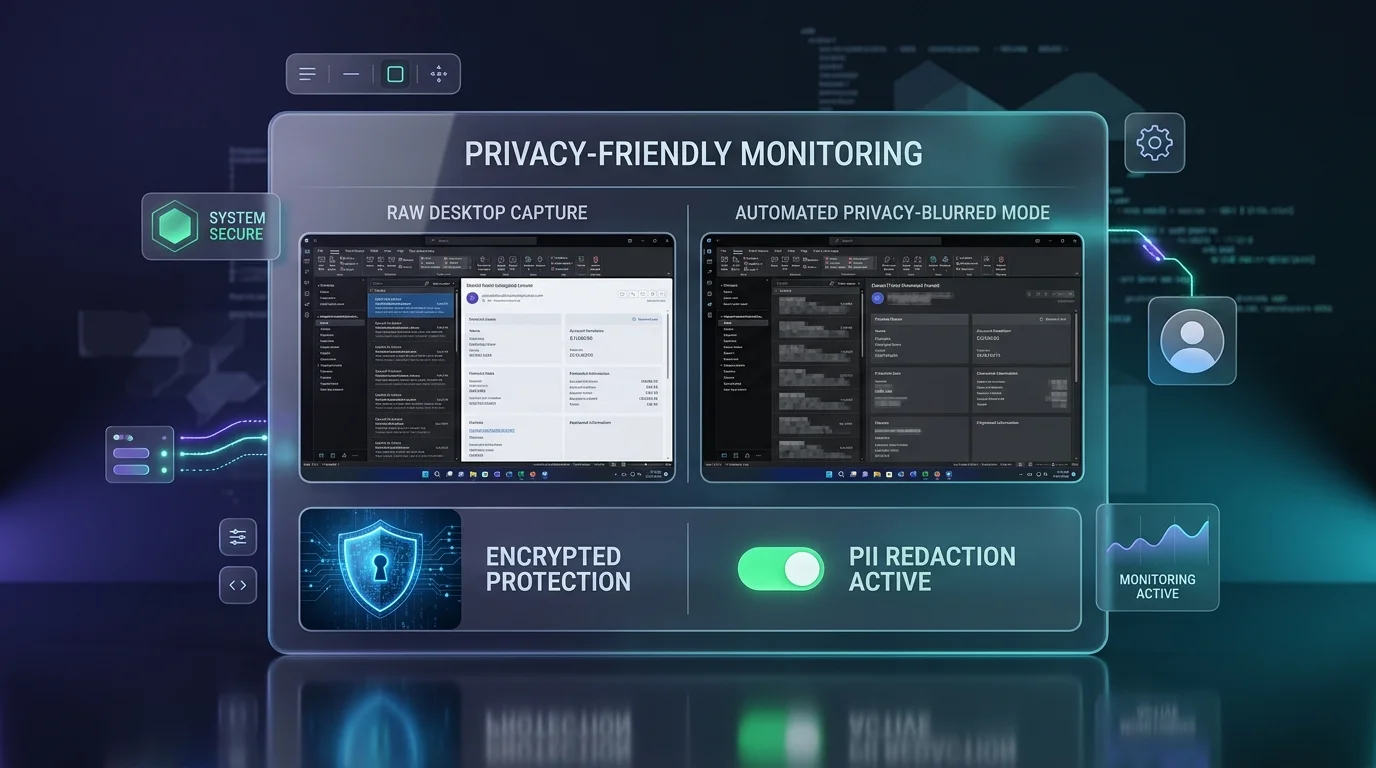
Remote engineers, legal staff, and financial teams frequently handle confidential credentials, customer PII, and sensitive source code. To uphold strict compliance under GDPR, CCPA, and HIPAA, Tracknesty features automated Privacy Blur Mode.
When Privacy Blur is activated:
- Local Pre-Processing: Gaussian filters are executed locally on the user machine before upload.
- Context Without Compromise: Clients and managers can easily verify the active task (e.g., code editor, design artboard, customer email) without reading sensitive customer names, financial values, or private credentials.
- Employee Deletion Rights: If an employee accidentally opens personal banking during a work block, they can delete the screenshot, which automatically deducts the corresponding 10-minute time block.
4. Anti-Bypass Technology: Defeating Hardware & Software Jigglers
Basic employee monitoring software that merely checks if the cursor has moved can be easily fooled by cheap USB hardware dongles or simulated auto-clicker scripts.
Tracknesty protects organizations with advanced heuristic tamper detection:
- Trajectory Curve Analysis: Organic human hand movement has subtle accelerations, micro-pauses, and non-linear arcs. Robotic linear vectors and recurring sine waves trigger instant alerts.
- Cadence Anomaly Recognition: Keystroke and click frequencies without natural variation are flagged as synthetic macro playback.
- Visual-Input Cross Referencing: If a mouse is moving continuously but the desktop screenshot shows no active application changes or work output, the interval is automatically marked for review.
5. Technical Comparison: Manual vs Basic vs Advanced Screenshot Tracker
Evaluating different tracking approaches demonstrates why modern distributed companies choose dedicated time tracking with screenshots:
| Capability | Manual Spreadsheets (Excel) | Basic Timer Apps | Tracknesty Screenshot Tracker |
|---|---|---|---|
| Proof-of-Work Verification | ❌ None (Honor system) | ⚠️ Timer only (No proof) | ✅ Verified visual screenshot timeline |
| Privacy Gaussian Blur | N/A | ❌ No screen capture | ✅ Automated client-side PII masking |
| Anti-Mouse Jiggler AI | ❌ Blind to fraud | ❌ Easily fooled by USB dongles | ✅ Heuristic trajectory & cadence engine |
| Client Invoicing Defense | ❌ High dispute rates | ⚠️ Weak audit defense | ✅ Shareable read-only visual gallery |
| Idle Time Auto-Detection | ❌ Forgets to stop timer | ⚠️ Basic delayed prompt | ✅ Smart configurable threshold alerts |
| CPU & Bandwidth Usage | Zero | Low | ✅ Ultralight (<1% CPU, WebP compression) |
6. Key Business Benefits for Remote Teams & Agencies
Deploying a modern Time Tracker With Screenshots delivers tangible operational advantages:
- Faster Client Invoice Sign-Off: Attach verifiable proof-of-work galleries to retainer invoices to eliminate payment delays and scope disputes.
- Accurate Project Cost Control: Track true billable hours per milestone to prevent budget overruns with project cost tracking software.
- Zero Friday Timesheet Drag: Save hundreds of hours per year by automatically compiling verified timesheets from active tracker logs.
- Autonomous Remote Culture: Gives high-performing remote engineers and creatives the freedom to work flexible hours while maintaining objective accountability.
7. Frequently Asked Questions
How does a time tracker with screenshots actually work?
A time tracker with screenshots works by combining an active work clock with an automated background capture engine. When an employee clicks Start, the desktop agent monitors input frequency and takes automated desktop snapshots at randomized or set intervals (such as every 5, 10, or 15 minutes). The captures are locally compressed, optionally blurred for privacy, and securely synced to a cloud dashboard for timesheet verification.
Can employees know when a screenshot is being taken?
Yes. Modern, transparent solutions like Tracknesty provide optional real-time desktop toast notifications whenever a capture occurs. Employees can also view their own screenshot gallery, review active tasks, and see their recorded activity percentage in real time.
Does screenshot monitoring violate employee privacy or capture passwords?
Not when using ethical, privacy-first software. Tracknesty provides built-in automated Gaussian blur options that obscure sensitive financial, healthcare, or password data while still verifying work context. Furthermore, tracking only occurs while the timer is actively running, and ethical platforms never record webcams, audio, or keystrokes.
How do screenshot time trackers prevent fake mouse jigglers and idle fraud?
Advanced time trackers utilize heuristic anti-bypass engines that analyze cursor trajectory physics, input cadence variance, and window focus state. If an employee uses a hardware USB jiggler or automated script, the software detects the unnatural repetitive pattern, flags the time slot as simulated activity, and triggers an idle alert.
What happens if an employee accidentally opens personal banking or email during work hours?
With Tracknesty, employees have the ability to delete any screenshot containing personal information. Deleting a screenshot automatically deducts the associated time block (e.g. 10 minutes) from the billable timesheet, ensuring complete transparency and personal privacy.
Is screenshot time tracking legal for remote contractors and employees?
Yes, workplace monitoring is legal across the US, UK, Canada, Australia, and EU when implemented transparently with written employee notice and for legitimate business purposes such as payroll and client billing. Organizations operating under GDPR must conduct a Data Protection Impact Assessment (DPIA) and enable privacy blur controls.
8. Conclusion & Next Steps
Time tracking with screenshots has evolved into a vital foundation for ethical, high-trust remote work. By pairing automated interval captures with intelligent privacy blurring and anti-jiggler defenses, organizations can verify output, eliminate billing friction, and protect employee privacy.
Ready to upgrade your remote team? Start your free 7-day trial with Tracknesty today and discover effortless proof-of-work tracking.